SETUP GUIDES & SUPPORT
Everything you need to get your eSIM ready.
Find step-by-step activation guides, supported devices, and helpful setup instructions to get connected in minutes—before or during your trip.
100+
Supported Devices
5
Steps Easy Setup
200+
Destinations
4.9★
Avg. rating
eSIM Supported Devices
Check if your device supports eSIM
Customers need to confirm if they have an eSIM enabled device. The main way is to look up their device name and see if it is a supported device.
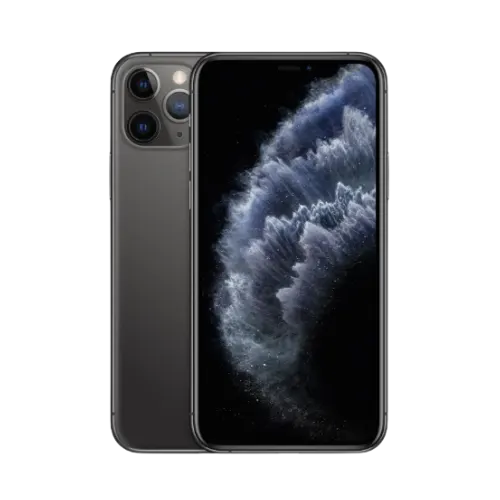
Apple iPhone 11
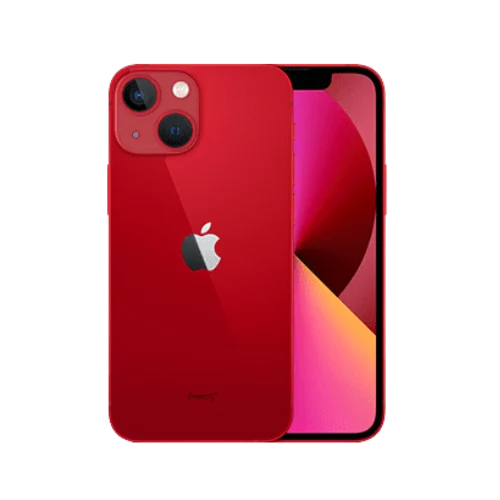
Apple iPhone 13 Mini
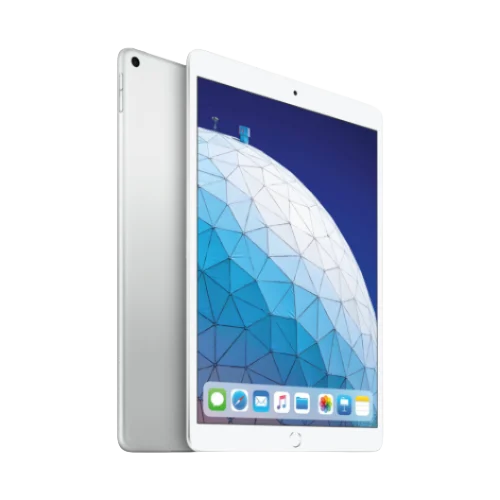
iPad Air (3rd Generation)
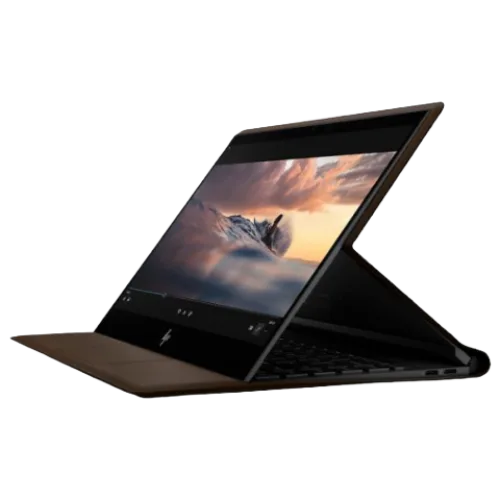
HP Spectre Folio

Apple Watch series 3 & 4
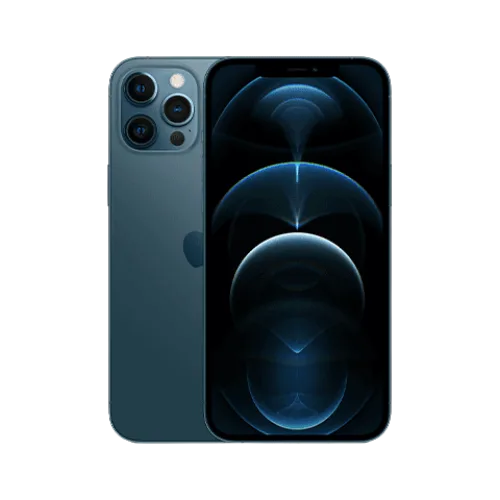
Apple iPhone 12 Pro Max
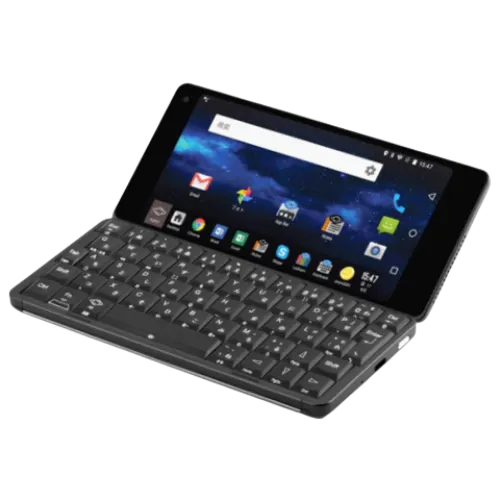
Gemini PDA
iPad Air (3rd Generation)
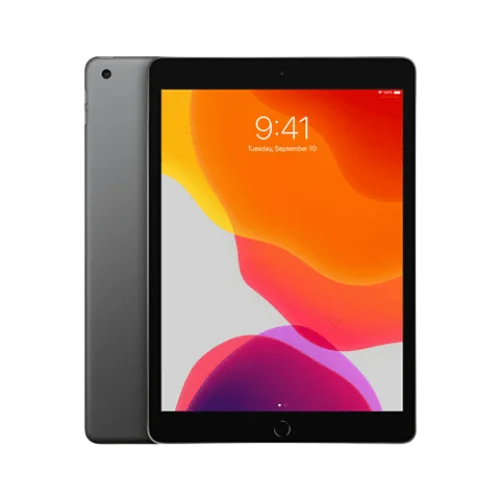
iPad (7th generation)

Huawei Watch 2 Pro
HP Spectre Folio
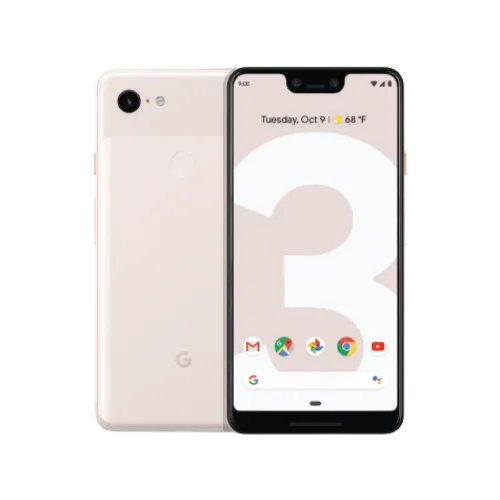
Google Pixel 3, Google Pixel 3XL
Gemini PDA
Apple Watch series 3 & 4
HOW IT WORKS
Activate your eSIM in 5 simple steps
Choose destination
Select the country or region you're visiting.
1
Select Your Plan
Choose the data package that fits your trip.
2
Complete checkout
Secure payment in just a few clicks.
3
Scan the QR
Install your eSIM instantly on your device.
4
Connect instantly
Enjoy fast internet from the moment you arrive.
5
- Scan the eSIM code, and Select “Cellular Plan”.
- Tap on “Add Cellular Plan”.
- Set different labels for your current SIM and eSIM, like “Personal” and “Travel,”
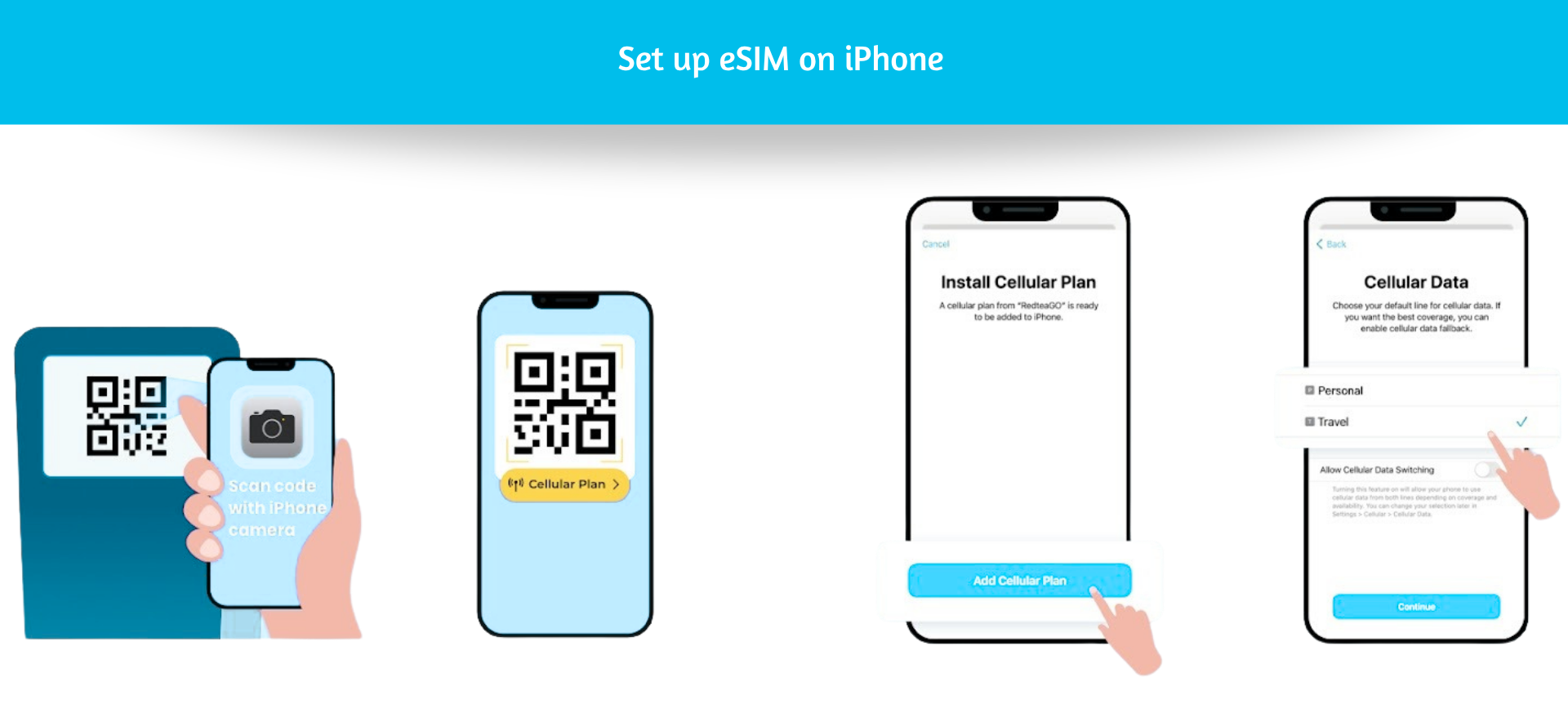
- Scan eSIM code and Tap on “Add plan to phone”.
- Click “Confirm”, Go to “SIM card manager”.
- Tap on “Add mobile plan”.
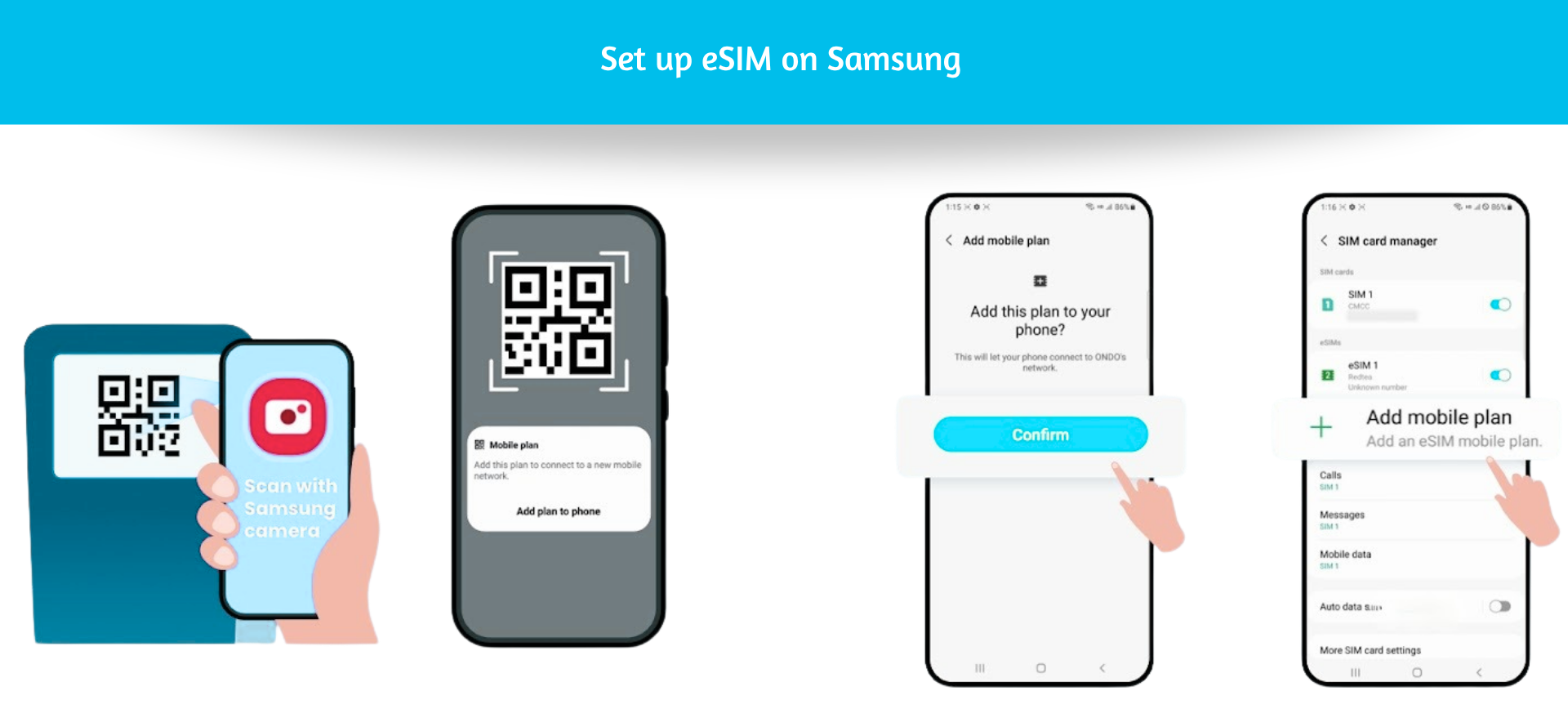
- Go to Settings and follow the steps on the right side.
- Go to “Download your eSIM”, Tap on “Next”.
- After scanning the code, turn on “Mobile data” and “Roaming”.
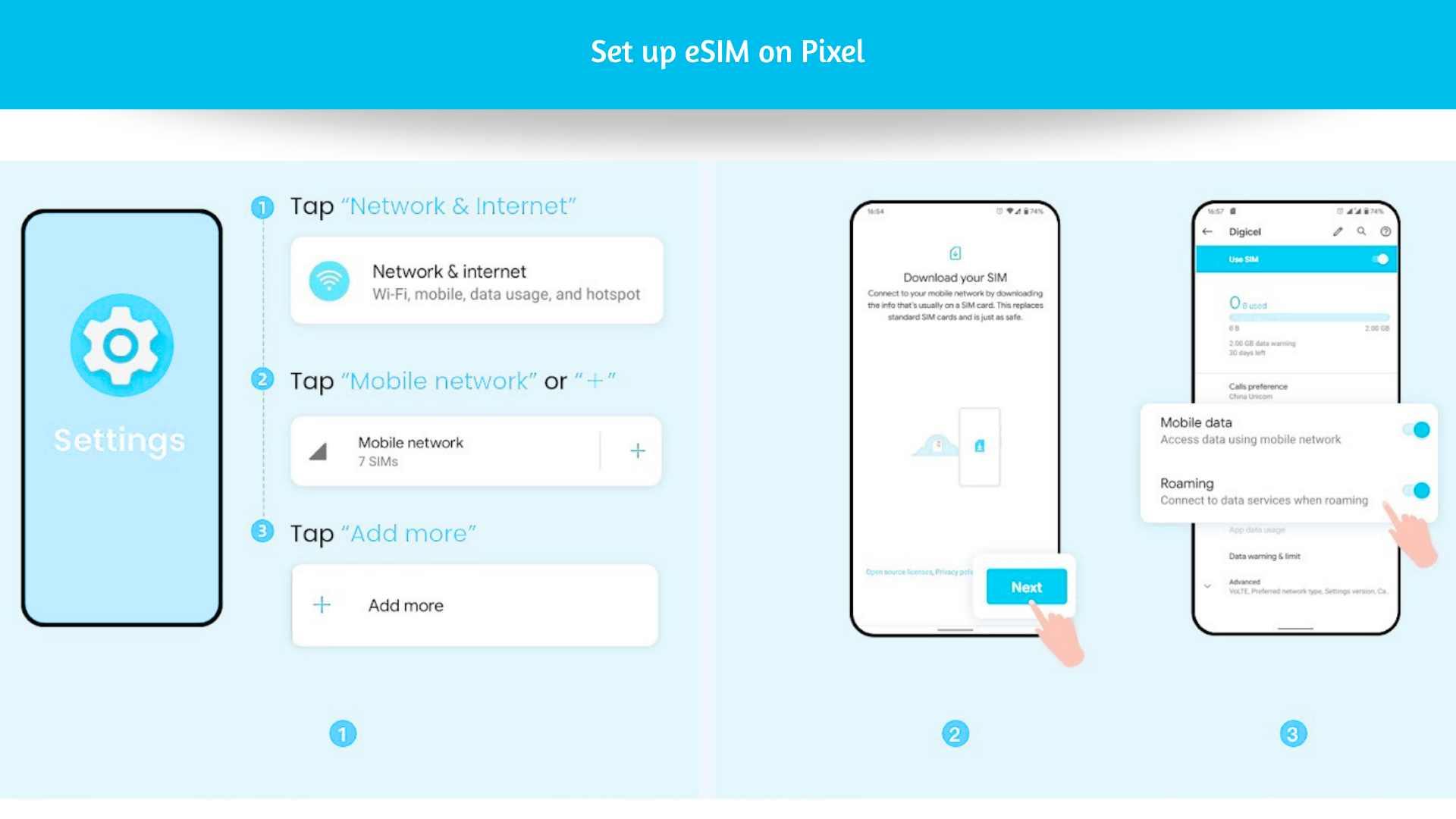
- Go to Settings > SIM card and Mobile/Cellular Data.
- Select eSIM.
- Accept the terms and continue.
- Select Add eSIM.
- Follow the instructions on the screen until you get the option to scan QR code.
- Scan the QR code that your operator gave you.
- Wait for the installation to be completed.
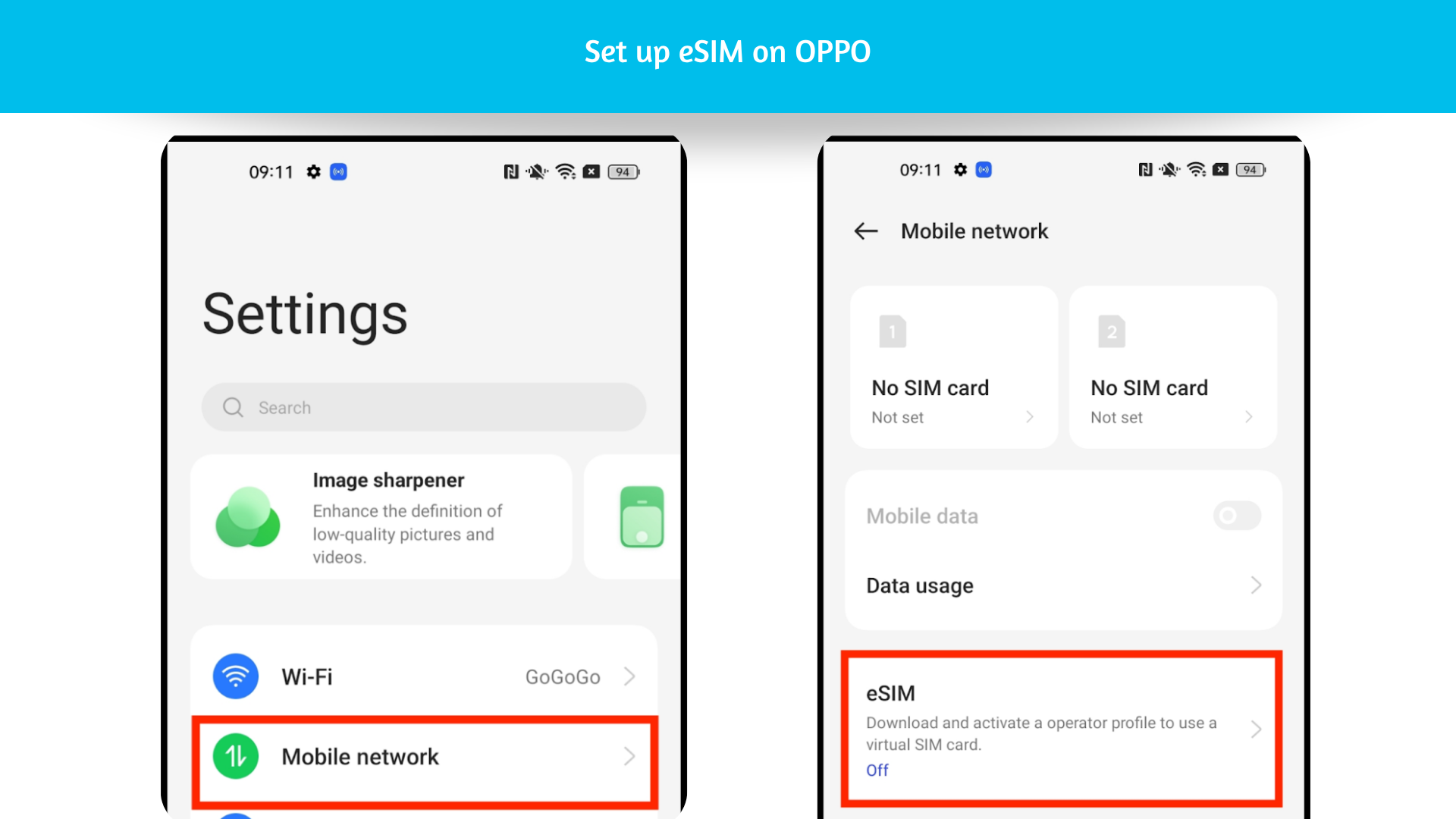
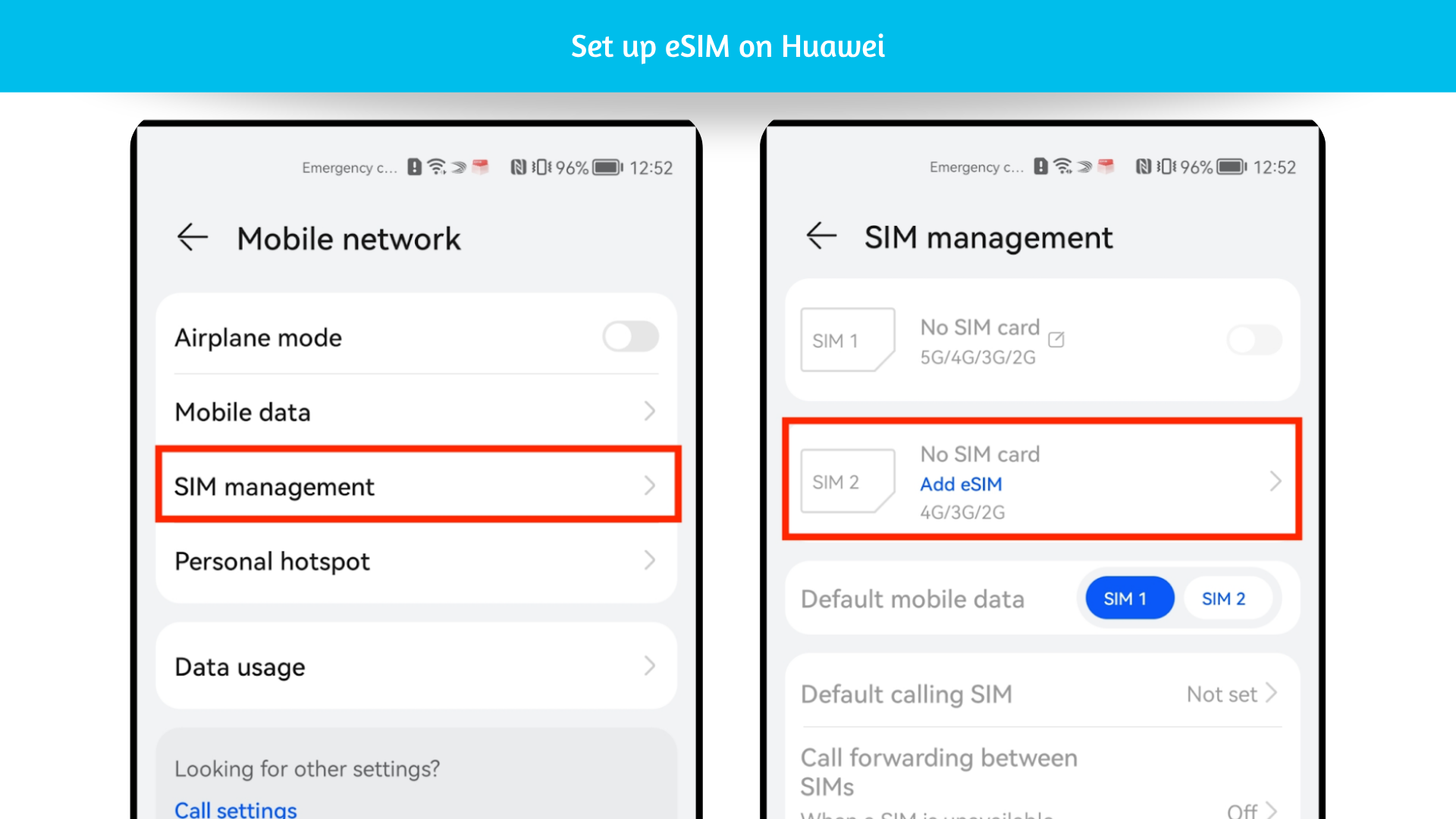
- Go to Settings> Mobile network> SIM management. Even if your device only supports one physical SIM card, SIM 1 and SIM 2 options are displayed. The eSIM card is installed in the SIM 2 slot by default.
- Go to SIM 2 > Add eSIM to scan the QR code received from your network carrier.
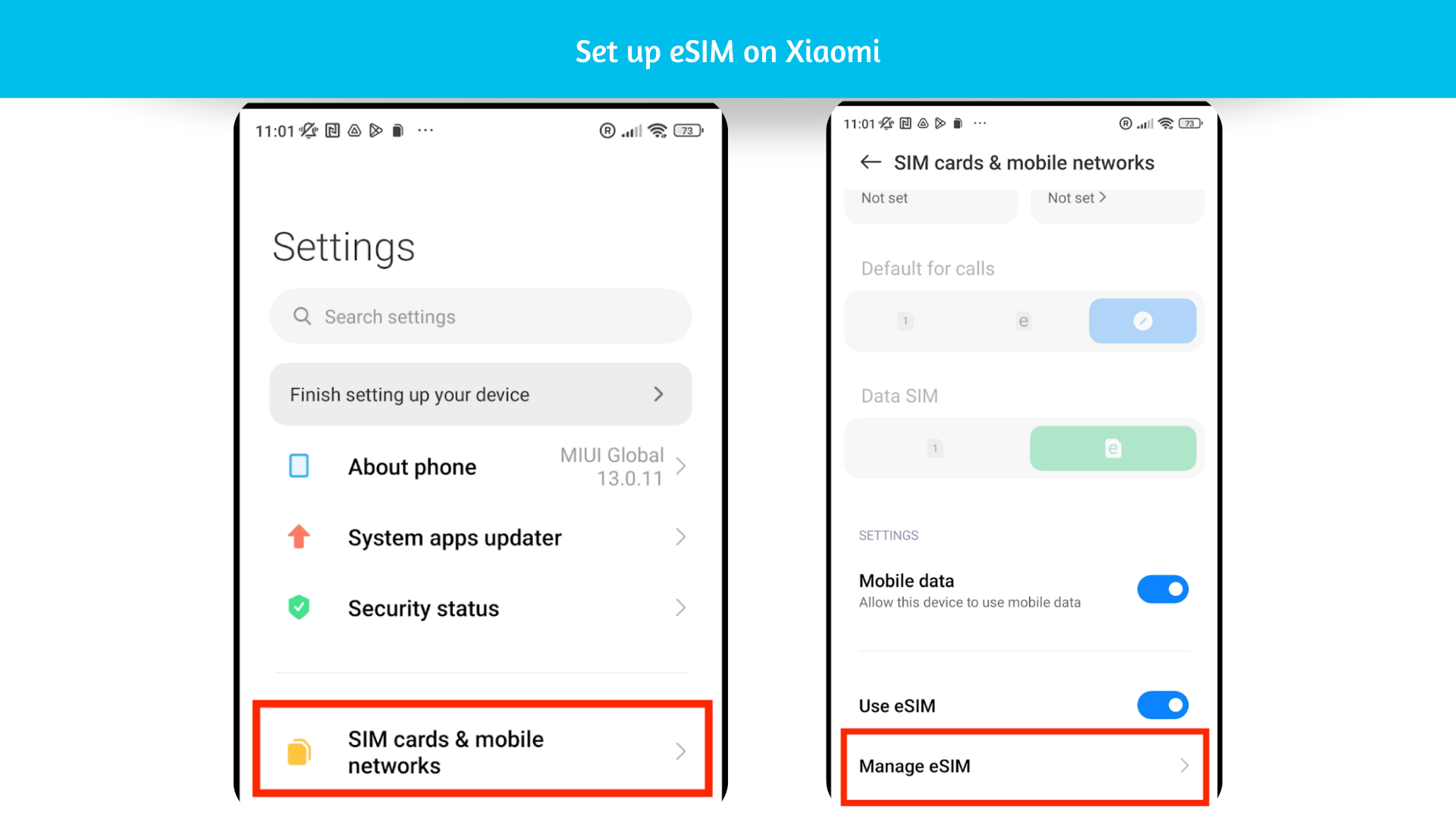
- Go into Settings.
- Go into “SIM cards & mobile networks”
- Scroll down until you see the option “Manage eSIM” and click on it.
- Tap “Add mobile plan”
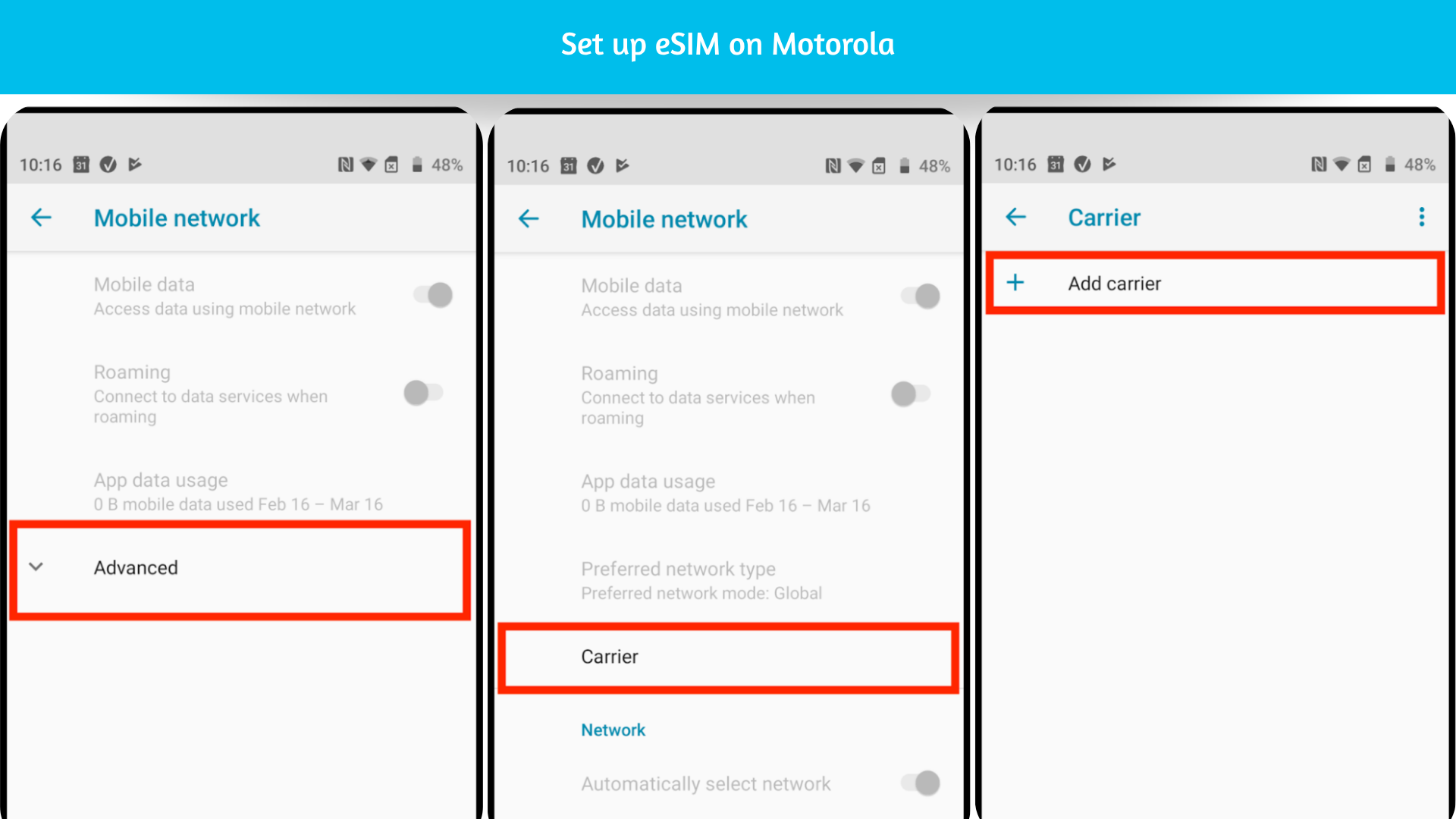
- Go into Settings.
- Click on “Network & Internet”.
- Click on “Mobile Network”.
- Click the drop-down menu named “Advanced”.
- Click on “Carrier” and Tap “Add carrier” and go next
- Scan the “QR Code” given through your eSIMs bundles account.
START YOUR JOURNEY
Ready to activate your eSIM?
Choose a plan and activate your eSIM in just a few minutes.