Instructions
eSIM Supported Devices
Customers need to confirm if they have an eSIM enabled device. The main way is to look up their device name and see if it is a supported device.
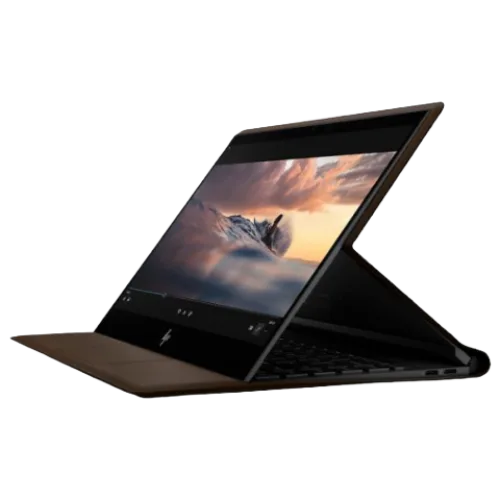
HP Spectre Folio
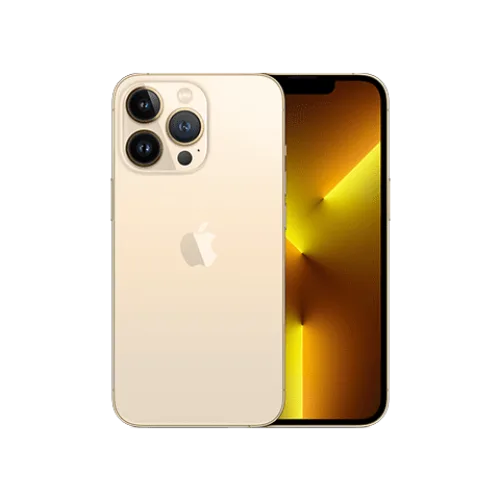
Apple iPhone 13 Pro
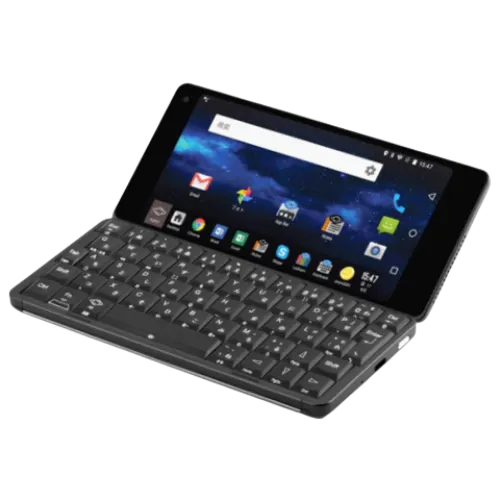
Gemini PDA
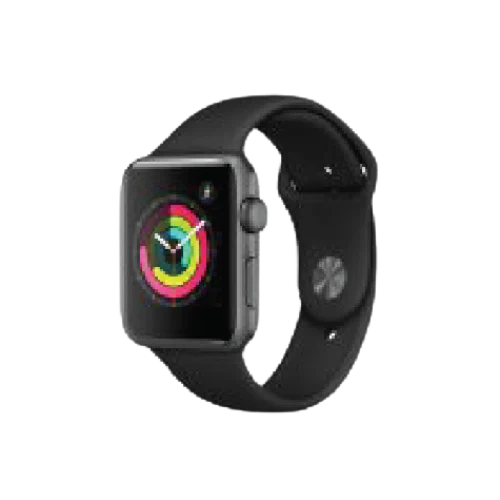
Apple Watch series 3 & 4
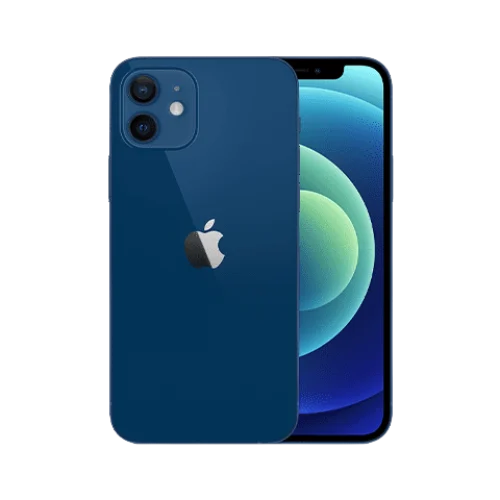
Apple iPhone 12
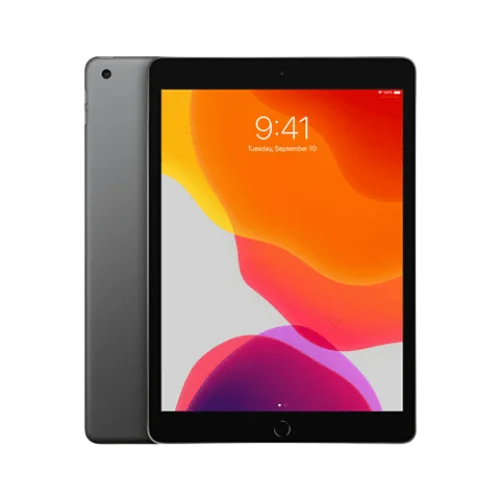
iPad (7th generation)
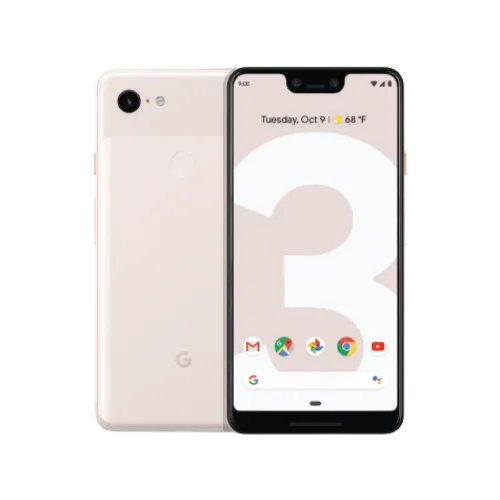
Google Pixel 3, Google Pixel 3XL
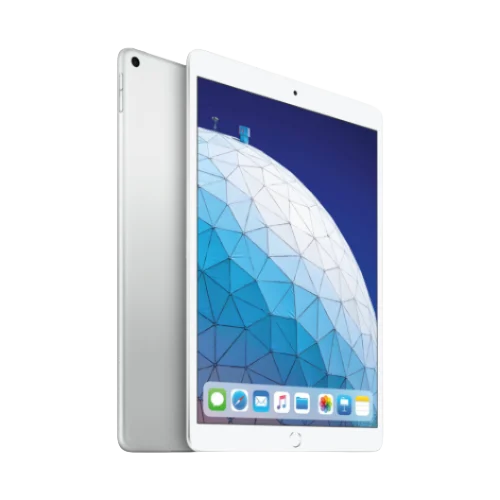
iPad Air (3rd Generation)
iPad (7th generation)

Huawei Watch 2 Pro
HP Spectre Folio
Google Pixel 3, Google Pixel 3XL
Gemini PDA
Apple Watch series 3 & 4
How does eSIM from eSIMplify work?
DOIT ESIM allows you to instantly activate mobile data services by scanning a QR code,
providing seamless connectivity without a physical SIM card.
1
choose the destination
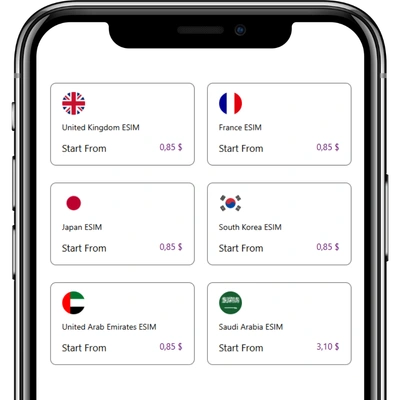
2
Select your plan
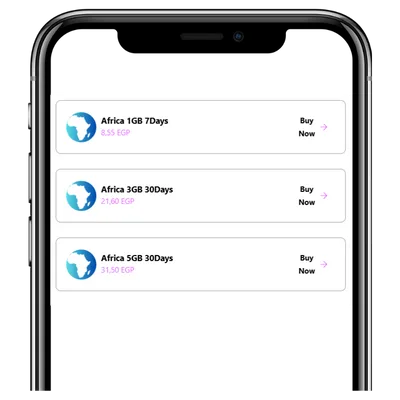
3
Complete payment
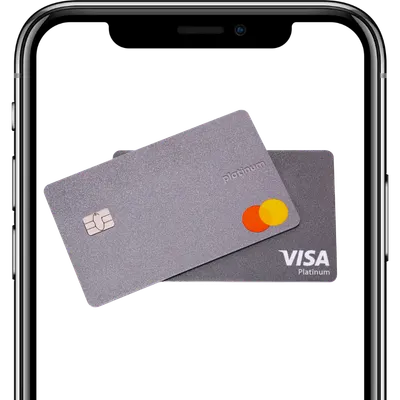
4
Receive your ESIM code
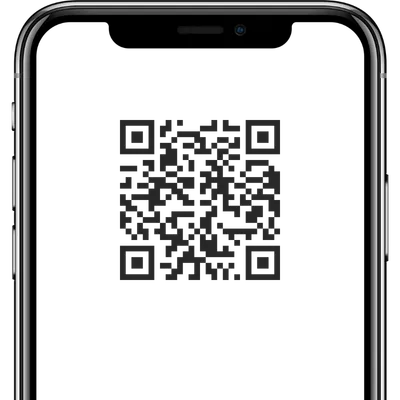
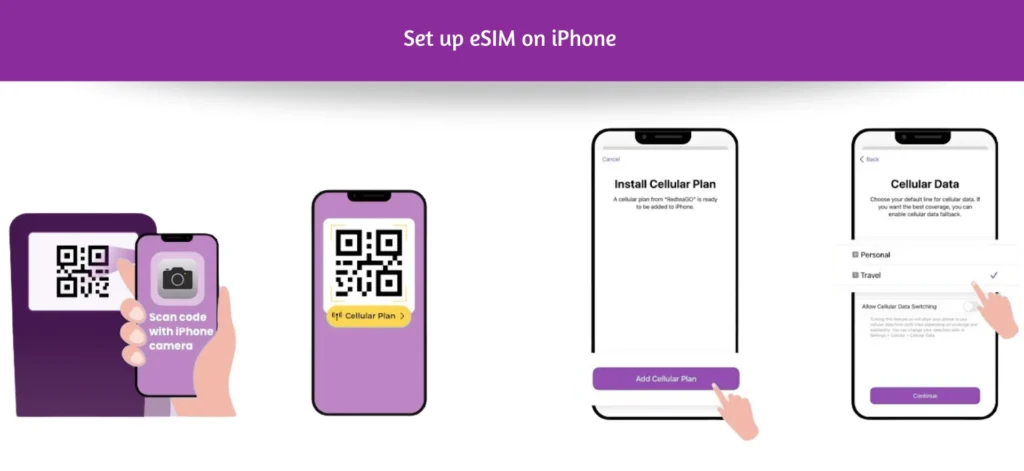
- Scan the eSIM code, and Select “Cellular Plan”.
- Tap on “Add Cellular Plan”.
- Set different labels for your current SIM and eSIM, like “Personal” and “Travel,”
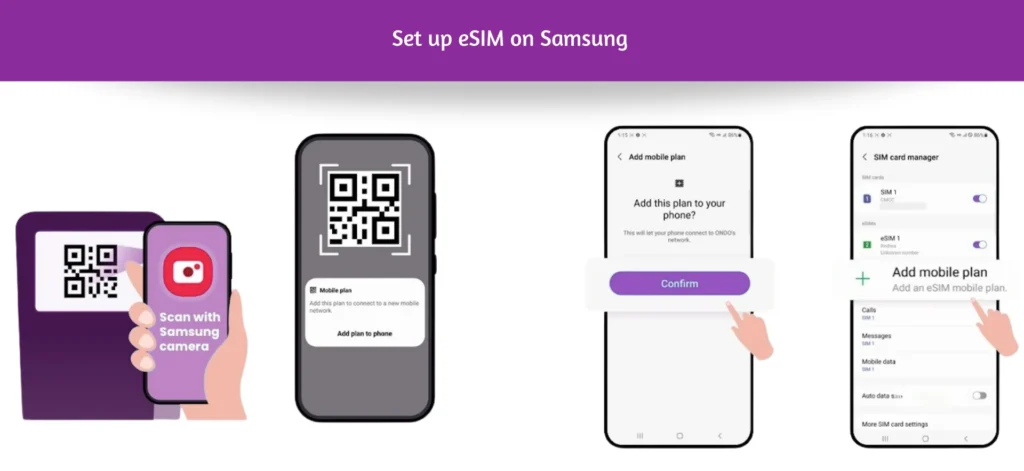
- Scan eSIM code and Tap on “Add plan to phone”.
- Click “Confirm”, Go to “SIM card manager”.
- Tap on “Add mobile plan”.
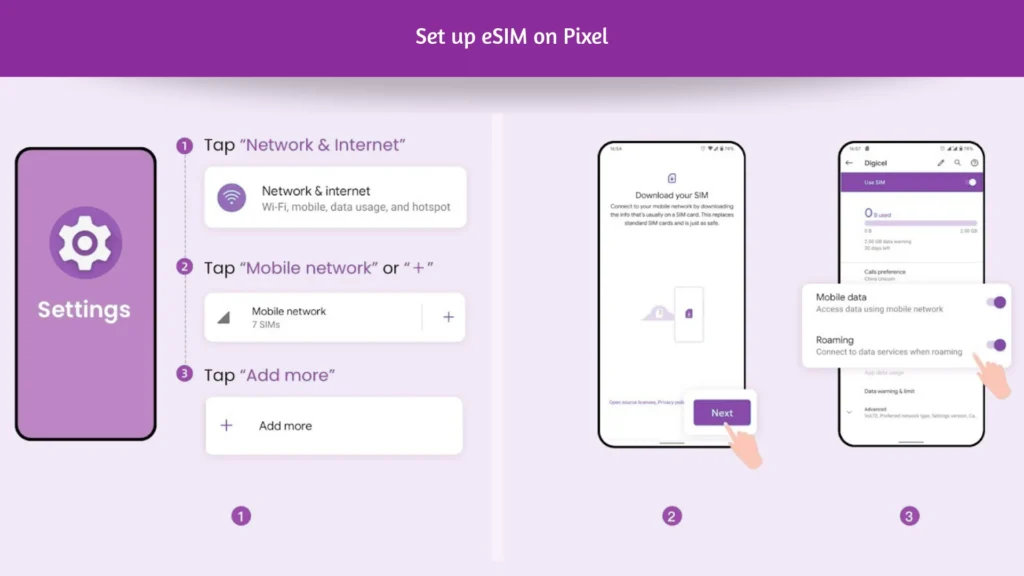
- Go to Settings and follow the steps on the right side.
- Go to “Download your eSIM”, Tap on “Next”.
- After scanning the code, turn on “Mobile data” and “Roaming”.
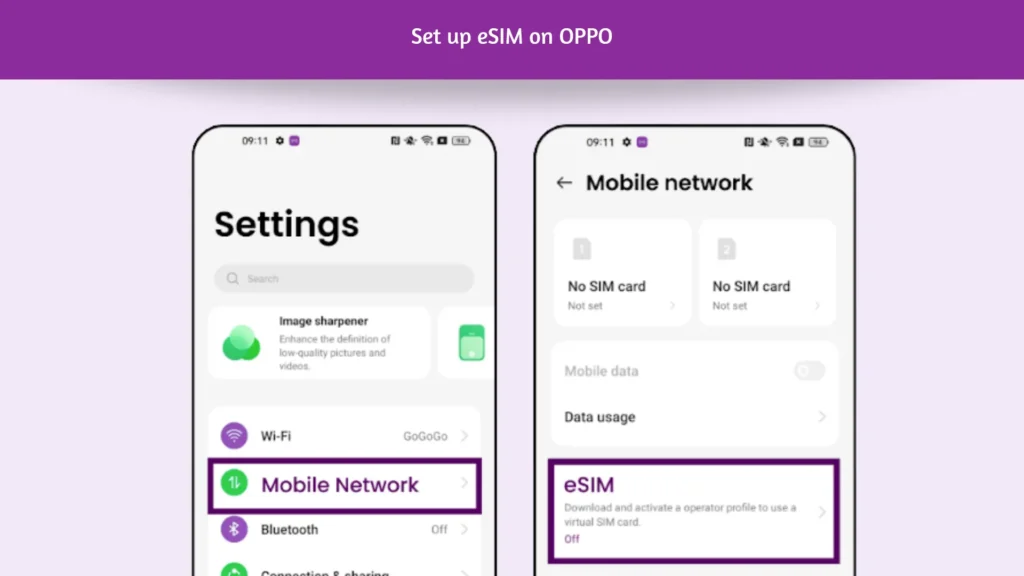
- Go to Settings > SIM card and Mobile/Cellular Data.
- Select eSIM.
- Accept the terms and continue.
- Select Add eSIM.
- Follow the instructions on the screen until you get the option to scan QR code.
- Scan the QR code that your operator gave you.
- Wait for the installation to be completed.
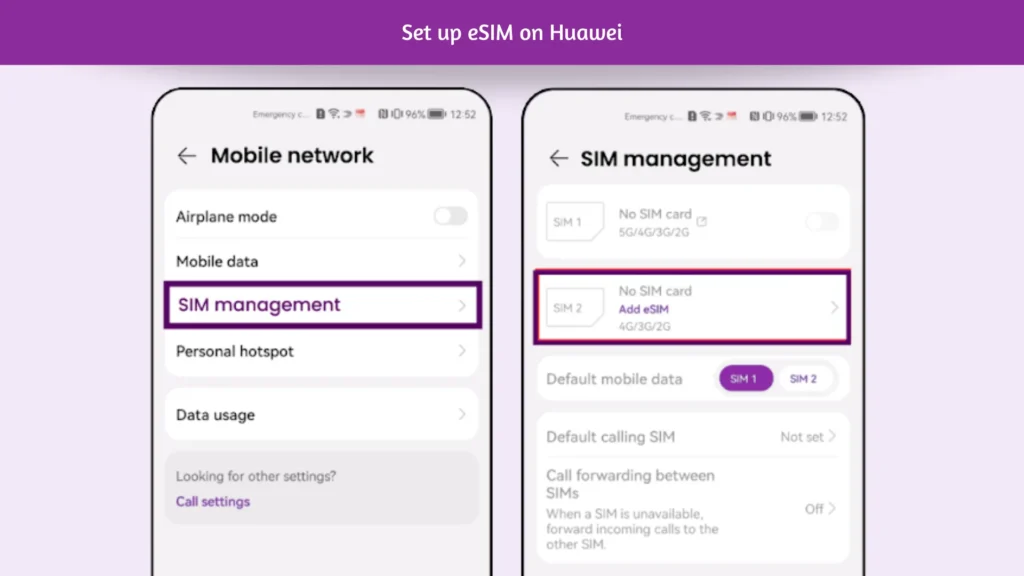
- Go to Settings> Mobile network> SIM management. Even if your device only supports one physical SIM card, SIM 1 and SIM 2 options are displayed. The eSIM card is installed in the SIM 2 slot by default.
- Go to SIM 2 > Add eSIM to scan the QR code received from your network carrier.
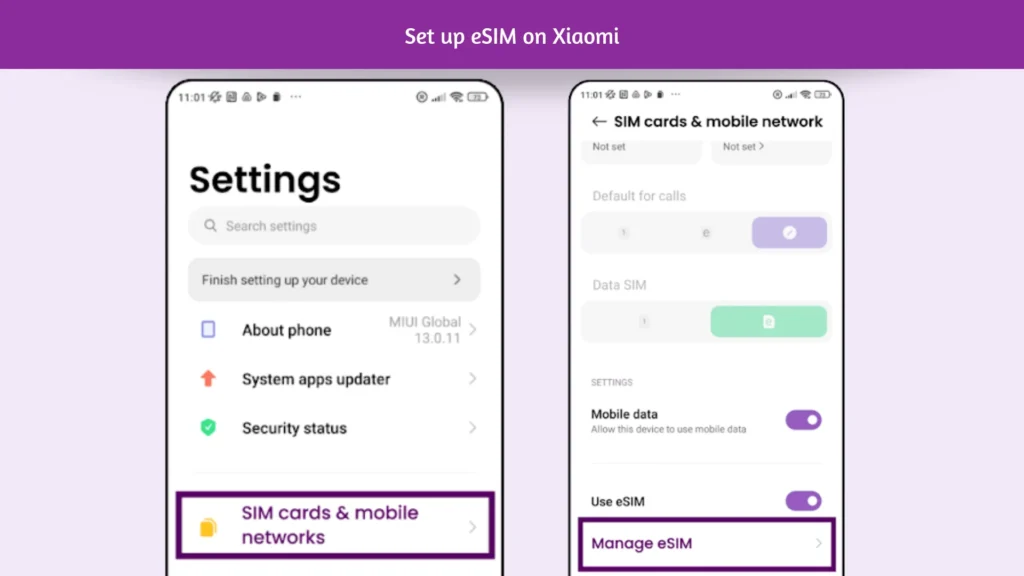
- Go into Settings.
- Go into “SIM cards & mobile networks”
- Scroll down until you see the option “Manage eSIM” and click on it.
- Tap “Add mobile plan”
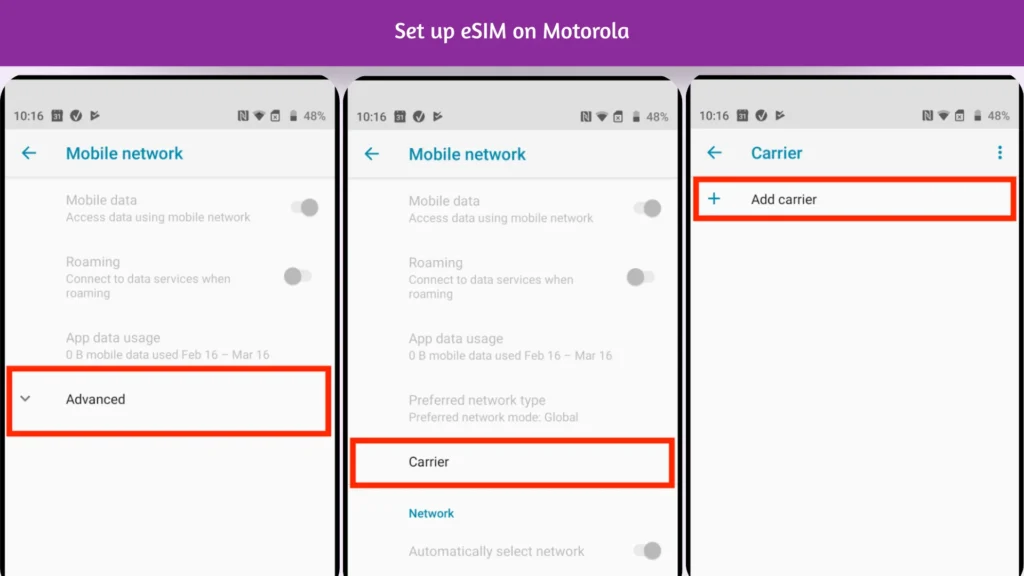
- Go into Settings.
- Click on “Network & Internet”.
- Click on “Mobile Network”.
- Click the drop-down menu named “Advanced”.
- Click on “Carrier” and Tap “Add carrier” and go next
- Scan the “QR Code” given through your eSIMs bundles account.